
- To enter data by question, choose NFER Tests from the left-hand menu and then select Enter data by question.
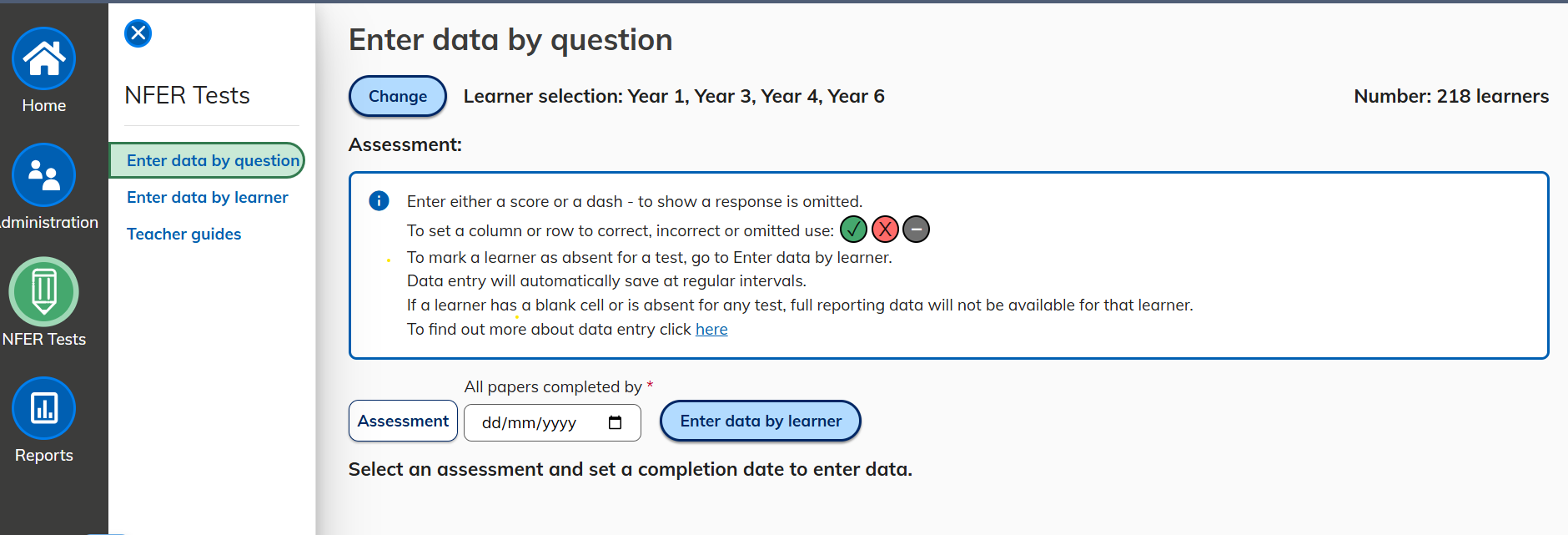
- Ensure that the learner selection is correct. If this needs adjusting select Change.
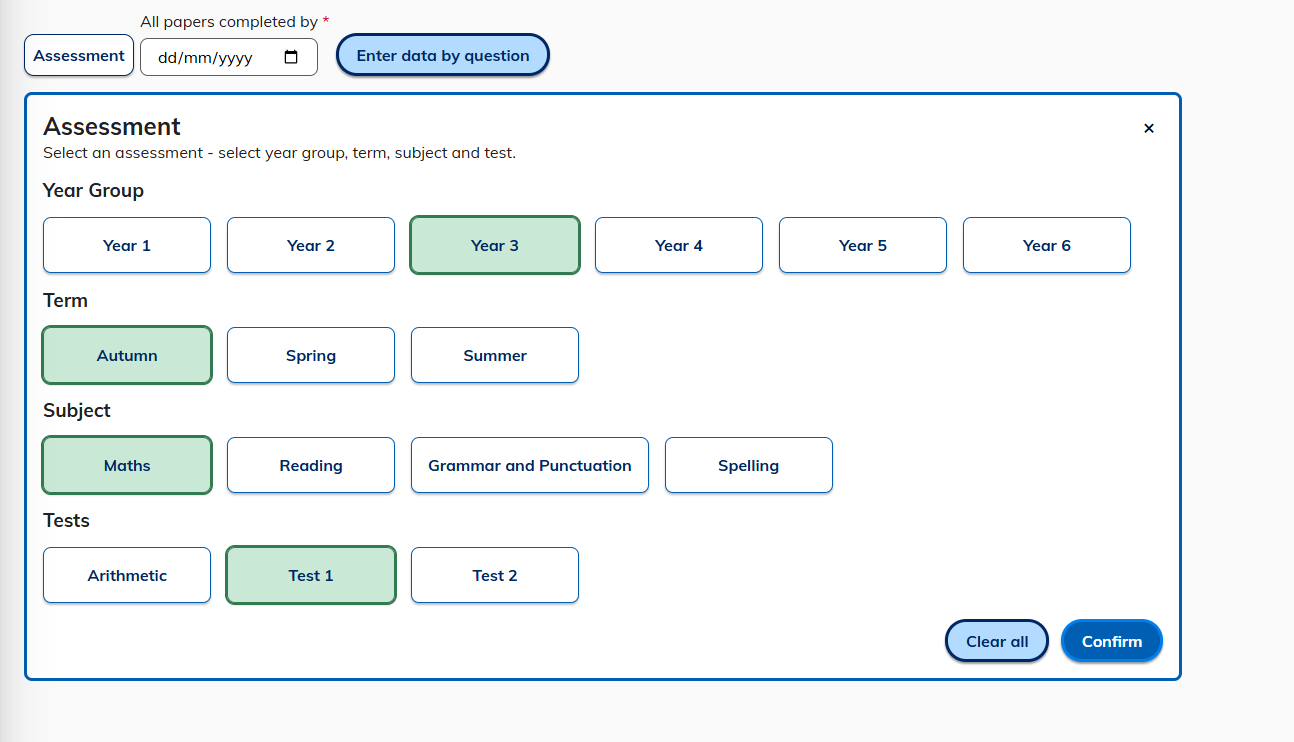
- Select Assessment to open the menu and use the options to select the relevant test. Select Confirm.
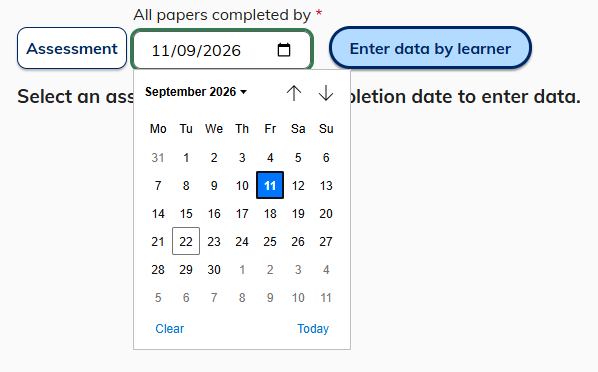
- Enter the date that all papers within an assessment were completed by the cohort. Either type into the box, or use the calendar icon to open the calendar tool and select a date.
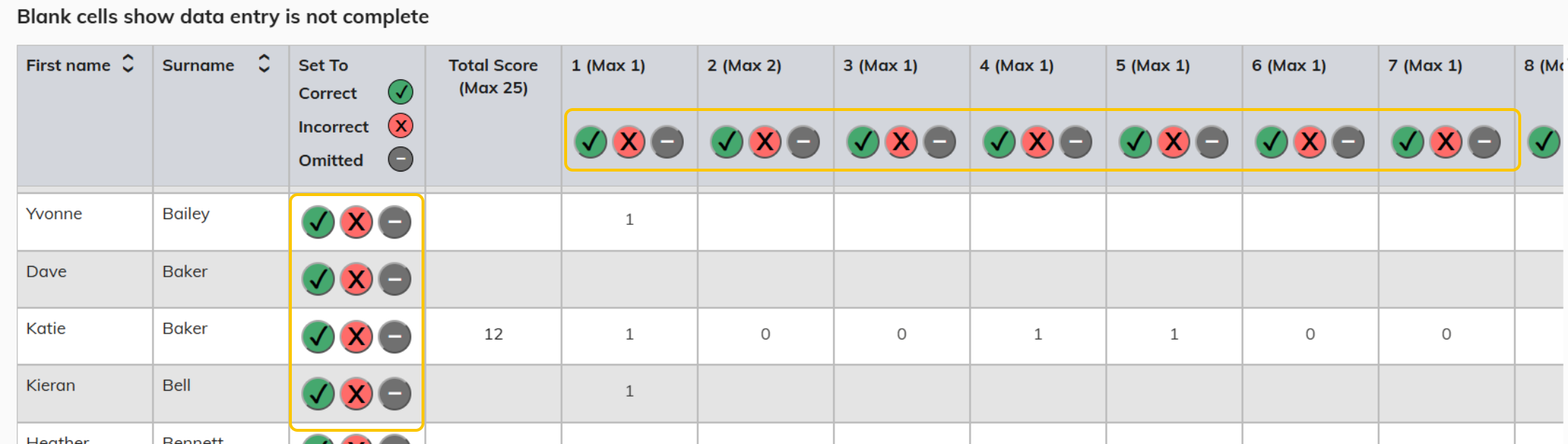
- The table shows each question within a test and the maximum marks available in the row along the top. Learners are shown in the first two columns Enter the marks achieved by each learner against each question. Navigate between questions by selecting a cell, or by using keyboard arrows.
- Selecting the green tick next to a learner name allocates maximum marks to this learner for all questions. Selecting the red X marks all questions as incorrect. Selecting the grey dash marks all questions as omitted.
- Selecting the green tick next to a question number awards maximum marks to all learners for that question. Selecting the red X marks the question incorrect for all learners. Selecting the grey dash marks all questions as omitted.
- The entered data will automatically Save at regular intervals. The Save button is available if you would like to save your data entry immediately.
Note: In order to mark a learner absent, Select the Enter by learner button. Select the assessment and enter a completed date. Then select the learner name and mark as Absent. To return to Enter data by question use the Enter data by learner button, the assessment selection will be remembered.
Was this article helpful?
That’s Great!
Thank you for your feedback
Sorry! We couldn't be helpful
Thank you for your feedback
Feedback sent
We appreciate your effort and will try to fix the article